
Player Count
Player Count reads public game-server population data from Steam and keeps a Discord channel name updated.
Paid feature
Player Count requires Premium or Premium Plus.
Supported Servers
Player Count currently uses the Steam Web API server directory. It works with dedicated game servers that:
- are listed in Steam's public server directory;
- expose their public host and port there; and
- report player and maximum-slot counts through Steam.
This includes many Steam dedicated servers, but support depends on the game and server being visible in Steam's directory. HAF does not currently provide separate BattleMetrics, CFTools, console-network, or direct UDP query providers.
Queue size is read when the Steam server metadata exposes the lqs value used by supported DayZ servers. Other games normally report a queue of zero.
If an address-only lookup returns no server, HAF discovers the game's Steam App ID at that exact address and retries with both the address and App ID. Hostnames are resolved to an IPv4 address for this discovery. Existing saved servers do not need an App ID setting.
WARDOGS preparation (experimental)
The dashboard also supports preparing a WARDOGS RCON entry. Select WARDOGS RCON as its provider and choose an existing secure target owned by your Guild. Configure its password in WARDOGS targets, not in Player Count. The target must have current operator approval and verified read access, and the HAF operator must enable WARDOGS Player Count before polling can begin. No host is certified by the synthetic tests.
Routine polling and the Player Count test read status only; they do not fetch a roster or send game-server commands. Current and maximum players come from the response, including any valid over-capacity count. Queue length is Unavailable, not zero. The default format {count}/{max} does not require queue information.
Replacing the provider or target clears the prior snapshot and failure history. If a server is already displayed, saving its replacement requires confirmation. Disabled or unapproved targets are dormant; they do not generate outage alerts. A failed poll retains the last successful observation and shows its timestamp and stale/error state. Read-only status approval never enables bans, reserved slots, sales or XP.
Add a Server
Open Admin Dashboard → Player Count.
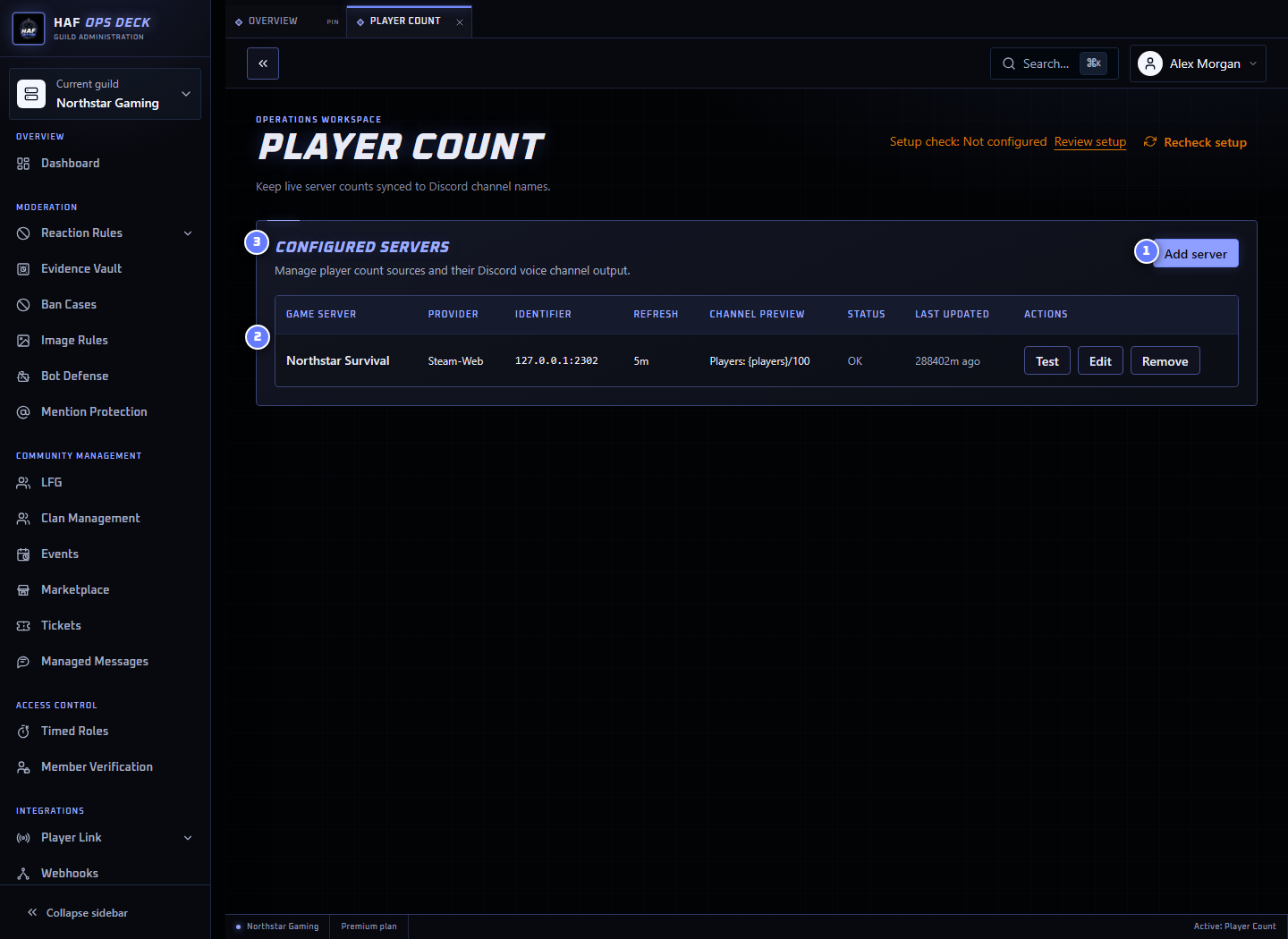
- Add server — opens the server form.
- Example server — latest query result for one configured server.
- Configured servers — every server currently tracked for the Discord server.
You need:
- a recognisable HAF display name;
- the public host or IP shown in Steam's server directory;
- the Steam-listed port, usually but not always
27015; - an existing Discord channel HAF may rename; and
- an optional private alert channel.
The Steam-listed port may differ from the port players enter in the game client. Use the exact address that Steam reports for the server.
Test Before Saving
The test action performs a live Steam Web API lookup and returns:
- current players;
- maximum slots; and
- queue size when available.
It does not save the server, update its stored snapshot, or rename the Discord channel.
When the test reports not found, check:
- the server is publicly listed in Steam;
- the host resolves to the correct public address;
- the port matches Steam's listing;
- the server has finished starting; and
- firewall, NAT, or provider settings allow Steam to advertise it.
Refresh Timing
Refresh intervals can be set from 5 to 60 minutes. The default is 10 minutes.
HAF checks due servers on a five-minute schedule and staggers servers to avoid changing many Discord channels at once. A query or channel-name update can therefore occur a few minutes after the exact configured interval.
Discord also limits frequent channel renames. HAF will not rename the same channel more than once within five minutes.
Channel Name Templates
Online and offline names are configured separately.
Available placeholders:
| Placeholder | Value |
|---|---|
{name} | Configured HAF server name |
{count} | Current player count |
{max} | Maximum player slots |
{queue} | Queue size, or ? when unavailable; a confirmed zero remains 0 |
{queue?text} | Adds text followed by the queue number only when the queue is above zero |
Examples:
text
🎮 {count}/{max}{queue? +}text
{name}: {count}/{max} {queue?Queue: }Default online name:
text
🎮 Players: {count}/{max}Default offline name:
text
🎮 Players: OfflineDiscord channel names are limited to 100 bytes. HAF shortens longer generated names with ....
Failure Detection and Alerts
The failure threshold can be set from 1 to 20 consecutive failed queries. The default is 3.
When the threshold is first reached, HAF:
- writes a Player Count failure event to the Guild Audit Log when configured; and
- posts an alert embed to the server's alert channel when selected.
The alert contains the server name, host and port, failure count, and latest error. HAF sends one alert for that failure streak rather than repeating it on every failed check.
A successful query resets the failure streak and allows a future outage to generate a new alert.
Once the failure threshold is reached, the status channel uses its offline name instead of displaying the last successful count. The dashboard keeps the previous observation and its timestamp available for diagnosis. A successful query restores the online channel name.
Commands
| Command | Result |
|---|---|
/playercount add | Adds a Steam-directory server |
/playercount remove | Removes a configured server |
/playercount list | Lists configured servers |
/playercount show | Shows the latest saved status for all servers |
See Discord Commands for parameters and limits.
Paid Access Ending
When the Discord server returns to Free, HAF keeps the saved server configuration but stops queries and channel renames. Restoring a paid Guild Assignment resumes future refreshes.
Setup Check
After saving, use Setup check to inspect destination and alert channels plus Discord permissions. It does not query Steam or rename a channel.
The feature page can create or reuse the status voice channel and private alert channel. Creating a channel selects it in the form; save the server configuration separately.